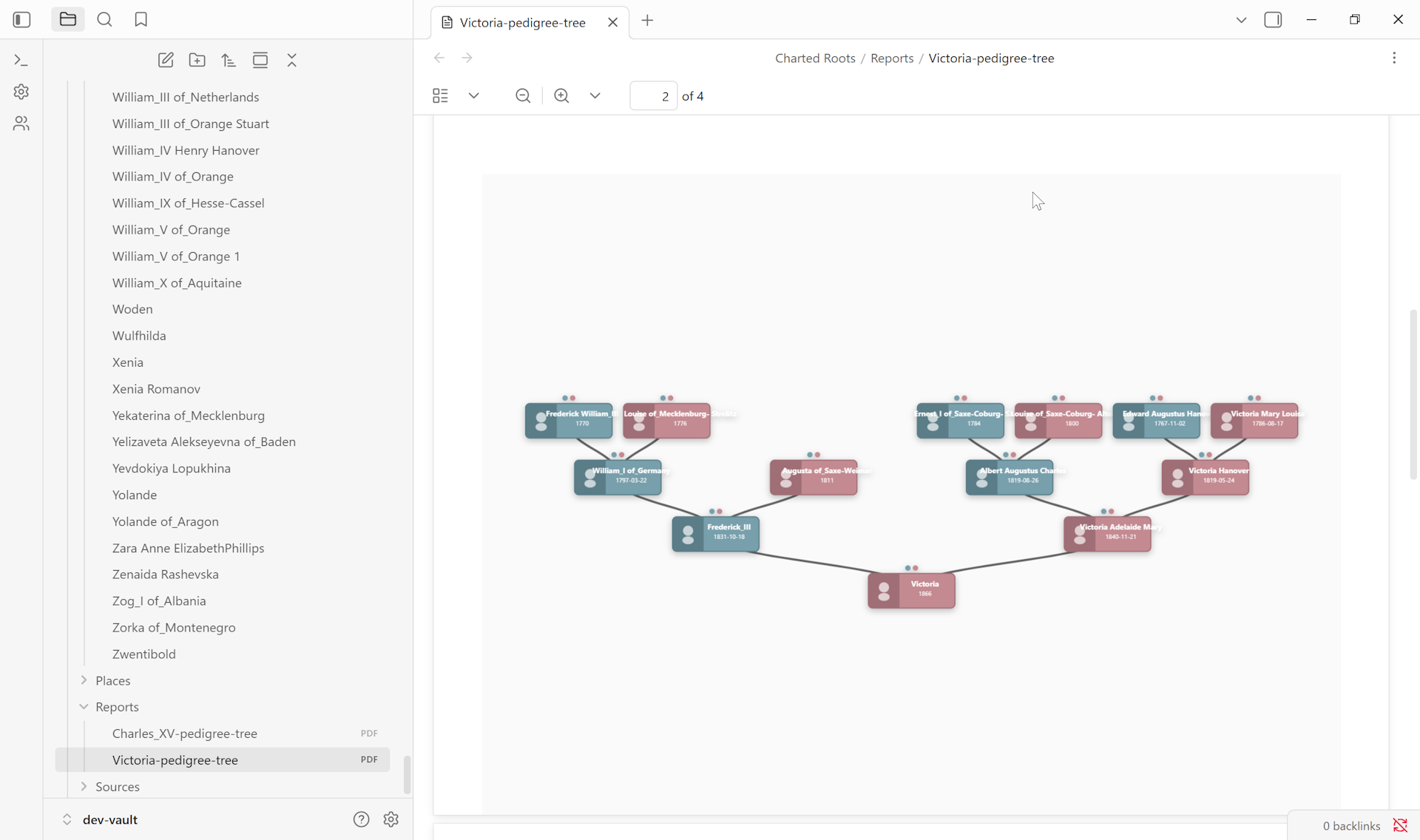
Use this when you want a printable artifact — for a family reunion, a wall mount, a gift, archival storage, or sharing with a non-Obsidian relative. The Tree Wizard handles four output formats from one entry point. This guide focuses on the PDF path because “printable” is what most readers came here for; ODT, Canvas, and Excalidraw outputs get pointers in Variations.
What you’ll need#
- People notes connected via parent / spouse / child relationships.
- One root person to focus the tree around — typically the oldest known ancestor or the central person of a family group.
- (Optional) The Excalidraw plugin installed if you want hand-drawn output instead of standard PDF.
Steps#
1. Open the Tree Wizard#
Three paths:
- Control Center → Visual Trees tab → New Tree
- Statistics Dashboard → Visual Trees section → click any tree type (Pedigree / Descendant / Hourglass)
- Right-click a person note → Charted Roots → Generate Tree
2. Pick the root person#
Step 1 of the wizard. Search by name; sort by birth or death year; filter by family group, collection, or universe. Birth and death years appear next to each name to help disambiguate people with similar names.
3. Choose the tree shape#
Step 2 — three options:
- Full Tree (Hourglass) — root in the center, ancestors above, descendants below.
- Ancestors (Pedigree) — only ancestors, branching upward. Binary branching, each person has 2 parents.
- Descendants — only descendants, branching downward.
Set generation limits for ancestors and descendants. Toggle “Include spouses” if you want spouse relationships shown alongside parents and children.
4. Pick PDF as the output format#
Step 3. PDF is the print-ready format. ODT, Canvas, and Excalidraw also appear here — see Variations for when each makes sense.
5. Configure PDF options#
The PDF/ODT path opens a configuration step:
- Page size — Letter, A4, Legal, Tabloid, A3.
- Orientation — Portrait or Landscape. Pedigrees usually fit better in landscape.
- Node content — Name only / with dates / with dates and places.
- Color scheme — Default (gender-based blue/pink), Grayscale (best for monochrome printing), Generational (different colors per generation level).
- Large tree handling — Auto-scale (shrink to fit, may reduce readability), Auto page size (use larger paper), or Limit generations (reduce depth to fit).
6. Generate#
Set the document title and click Generate. The PDF downloads to the location your browser normally uses for downloads.
Variations#
- Hand-drawn aesthetic. Pick Excalidraw in step 4 instead of PDF. Three drawing styles (Architect / Artist / Cartoonist), customizable fonts, and SVG/PNG export. Requires the Excalidraw plugin.
- Editable in word processors. Pick ODT instead. Open in LibreOffice, Word, or Google Docs and customize fonts, colors, or add content around the tree diagram.
- Interactive on-canvas exploration. Pick Canvas for a clickable, zoomable tree linked to person notes. Choose a layout algorithm in the options step: Standard (most trees), Compact (50+ people), Timeline (chronological by birth year), or Hourglass (root centered).
- Wall-sized print. Tabloid or A3 in Landscape orientation. For multi-page tiling and large-format options, a dedicated wall-sized-pedigree guide is queued.
- Privacy protection for living persons. Available for Canvas and Excalidraw outputs in the wizard’s Privacy Protection section. For PDF/ODT, configure under Settings → GEDCOM and re-export.
Related guides#
- I want to add my first person from scratch
- I want to print a wall-sized pedigree (coming soon)
Reference#
- Wiki: Visual Trees
- Wiki: Tree Preview
- Wiki: Family Chart View
Found something wrong or unclear? Suggest an edit — opens a pre-filled issue with the guides label.