Use this when your research has accumulated enough that a single artifact would serve readers better than a scatter of notes — a printed family history for relatives, an archived snapshot for posterity, a manuscript for self-publishing. Book Builder assembles person profiles, family group sheets, photos, and narrative chapters into a configurable book output.
By the end you’ll have a PDF (or ODT) book file containing the chapters and entities you picked, with optional table of contents, bibliography, and name index.
What you’ll need#
- A populated tree — at minimum, the people you want featured in the book with their core biographical details and (ideally) a few photos.
- A general structure in mind: who’s the central figure or family? How many generations in scope? Are you writing chapters per person, per family group, or thematically?
- (Recommended) Source citations on the facts you want supported in the book.
Steps#
1. Open Book Builder#
Control Center → Tools → Book Builder, or command palette → Charted Roots: Open book builder.
2. Setup — title, author, format#
The first step asks for:
- Book title — your project’s display name.
- Author — your name or the family historian’s name.
- Output format — PDF (printable), ODT (editable in word processors), or Markdown (for further processing).
- Template — select a layout template. Templates control fonts, spacing, and chapter formatting.
3. Chapters — pick what’s in the book#
The chapter step is the heart of the workflow. Add chapters one at a time. Each chapter can be:
- A person profile — the person’s biographical sheet, photos, and event timeline.
- A family group sheet — a couple plus their children, in the standard genealogy format.
- A canvas tree — embed a generated family tree as a chapter.
- A narrative chapter — your own prose written as a separate note, included in the book.
- A filtered slice — e.g., “all descendants of the patriarch” or “all members of the Henderson collection.”
Drag chapters to reorder. Most family history books open with an introduction (narrative), then a pedigree (canvas tree), then per-family group sheets, then per-person profiles, then photo plates, then sources.
4. Output — page size, polish#
Configure the output:
- Page size — Letter, A4, Legal, Tabloid, A3.
- Font and spacing — within the template’s options.
- Table of contents — auto-generated from chapter titles.
- Consolidated bibliography — auto-generated list of all sources cited across chapters.
- Name index — auto-generated index of every person mentioned, with page numbers.
5. Generate#
Click Generate. Larger books (50+ chapters) take a few minutes. The output file lands in your configured book folder.
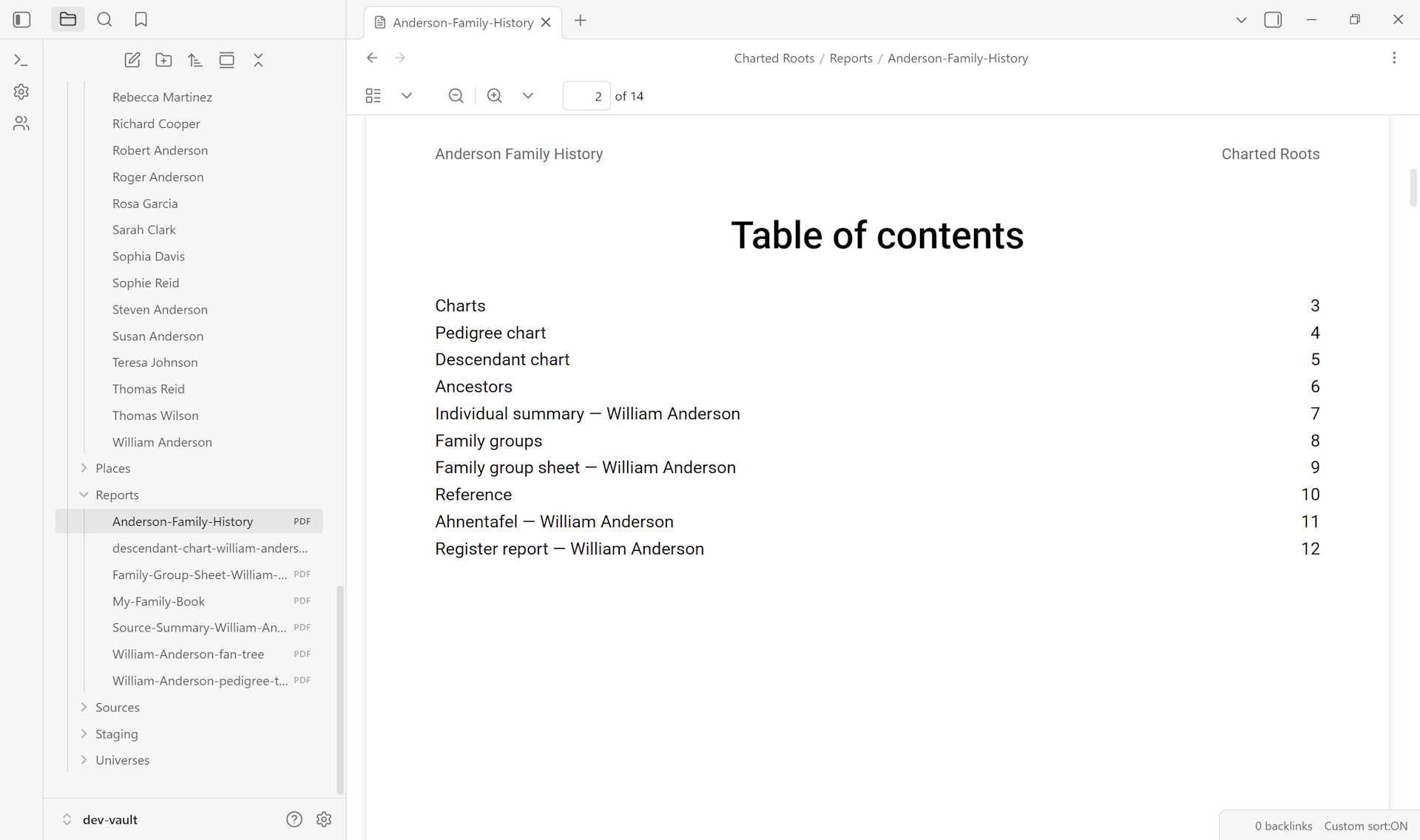
6. Verify#
Open the book file. Page through it — does the structure flow? Are images rendering correctly? Are sources cited where you expected?
If something needs adjusting, return to Book Builder, tweak the chapter set or output settings, and regenerate. The book definition is saved automatically so iteration doesn’t require rebuilding from scratch.
Variations#
- Save and reuse the definition. Book Builder lets you save a book definition for later. Useful when you want to regenerate a book annually as research grows — re-open the saved definition, optionally adjust, regenerate. Change detection highlights what’s new since the last build.
- Markdown output for further editing. Choose Markdown format if you want to take the assembled output into another tool (Pandoc, a publishing platform, a custom typesetter).
- Per-branch book. Filter chapters to a specific collection (e.g., “Maternal Line”) for a branch-focused book without a full-vault scope.
- Photo plate chapter. Some templates support a photo-plate chapter type that renders captioned photos in a grid. Useful as a centerpiece in the middle of the book.
Related guides#
- I want to generate a family group sheet — for individual group sheets you can later embed as chapters
- I want to generate a family reunion report — for a lighter-weight printable
- I want to generate a printable family tree — for trees that become chapters in the book
Reference#
- Wiki: Book Builder
Found something wrong or unclear? Suggest an edit — opens a pre-filled issue with the guides label.