Use this when your research surfaces evidence on the web — an obituary on a newspaper site, a Find a Grave memorial, a FamilySearch profile, a Wikipedia biography — and you want to capture it as a structured source note rather than copy-pasting into a blank file. By the end you’ll have the Obsidian Web Clipper extension installed, a Charted Roots template imported, and a real clipped note sitting in your staging folder ready for review and promotion to the main tree.
What you’ll need#
- A modern browser (Chrome / Edge / Firefox / Safari).
- A configured Staging folder under Settings → Charted Roots → Folders → System folders. A staging-workflow guide is queued for deeper coverage.
- (Optional but recommended) The Staging isolation toggle enabled under Settings → Charted Roots → Advanced → Folder filtering so clips don’t leak into tree generation until you promote them.
- An LLM API key if you plan to use the LLM-extraction templates (Obituary, FamilySearch, Wikipedia). The CSS-selector templates (Find a Grave, Wikipedia Basic) work without one.
Steps#
1. Install Obsidian Web Clipper#
The official browser extension. Install from your browser’s extension store:
2. Configure Web Clipper’s output#
Open the Web Clipper extension settings and set:
- Default vault — your Obsidian vault.
- Default folder — your Charted Roots staging folder (e.g.,
Family/Staging).
This is the load-bearing setting. Charted Roots only detects clips that land in the configured staging folder; clips saved elsewhere won’t auto-surface in Dashboard or Staging Manager.
3. Import a Charted Roots template#
Charted Roots ships several pre-built templates at docs/clipper-templates/ in the repo:
| Template | Site | Method |
|---|---|---|
| Find a Grave — Person | findagrave.com | CSS selectors |
| Find a Grave — Person (LLM) | findagrave.com | AI extraction |
| Obituary — Generic | Any obituary site | AI extraction |
| FamilySearch — Person | familysearch.org | AI extraction |
| Wikipedia — Biography (LLM or Basic) | wikipedia.org | AI or CSS |
| Wikidata — Place (LLM) | wikidata.org | AI extraction |
Download the .json file for the template you want, open Web Clipper settings → Import, and select the file. Templates auto-trigger on matching URLs.
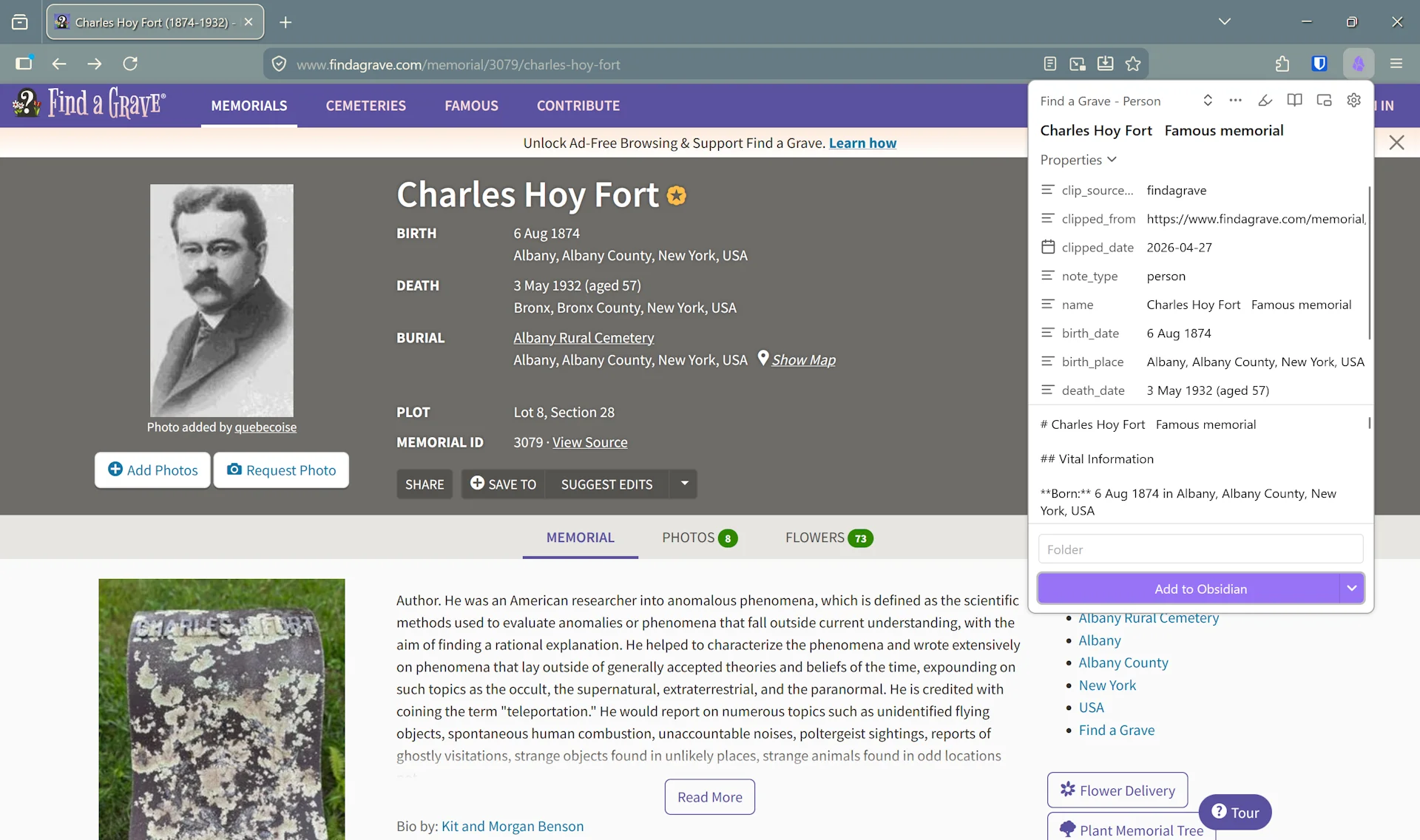
4. Clip a page#
Navigate to a supported site, click the Web Clipper icon, pick the template (or use the auto-suggested one), review the extracted fields, click Save to Obsidian.
5. Review in the Dashboard#
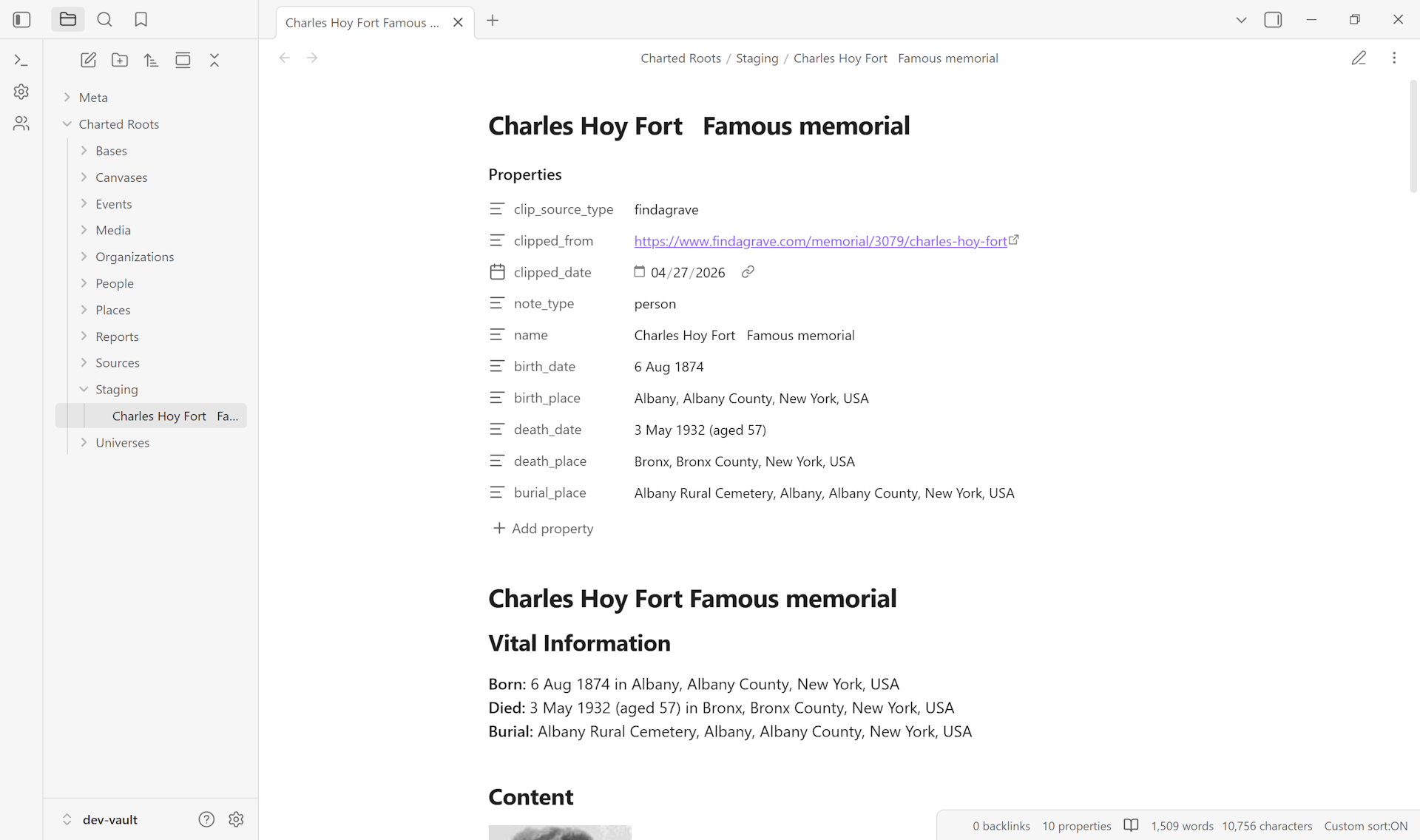
Open Control Center → Dashboard. The Staging card shows: 3 clips (1 new), 1 other. Click Review to open the Staging Manager.
In Staging Manager, use the toggle to filter to Clipped and inspect the new note. Read the extracted fields carefully — LLM extraction can hallucinate (especially for missing data like birth years), so verification before promotion is worth the few seconds.
6. Promote to the main tree#
When the clip looks correct:
- Click Check duplicates first to find any existing matches in the main tree (the Merge Wizard handles them — see I want to find and merge duplicate persons).
- Click Promote to move the note into your main tree. Promotion strips the clipper metadata properties, leaving a clean
cr_type: source(orcr_type: person,cr_type: place) note.
Variations#
- Custom templates. Build your own template in Web Clipper’s editor. Include at least one of
clip_source_type,clipped_from, orclipped_dateso Charted Roots detects it. Add Charted Roots properties (cr_type: source,source_type: obituary, etc.) for one-step promotion. - CSS selectors instead of LLM. When the site has a stable structured layout (Find a Grave, Wikipedia), CSS-selector extraction is faster, cheaper, and never hallucinates. LLM templates are the right choice when the layout varies (newspaper obituaries).
- Place clipping. The Wikidata Place template extracts coordinates, place type, and administrative hierarchy from any Wikidata Q-page. Promotes directly into the Places folder with a generated
cr_id. - Skipping staging. Possible but discouraged — clips go straight to whatever folder Web Clipper points at. Without staging, you lose the review/promote workflow and risk LLM-fabricated data leaking into the main tree.
Related guides#
- I want to set up a staging workflow for messy imports (coming soon)
- I want to find and merge duplicate persons
- I want to attach one source to multiple people (coming soon)
- I want to set up per-fact source citations
Reference#
- Wiki: Web Clipper Integration
- Wiki: Staging & Cleanup
- Repo: docs/clipper-templates/ — the canonical template library
Found something wrong or unclear? Suggest an edit — opens a pre-filled issue with the guides label.