Use this when your tree is large enough that accidental duplicates have crept in. Common after GEDCOM imports, Web Clipper batches, multiple data-entry sessions, or merging vaults with a relative. By the end, every confirmed duplicate is either dismissed (the two records are kept as separate people because they’re not actually the same person) or merged via the Merge Wizard — with all relationship references reconciled to point at the kept record.
This guide is also the back-half of the import-gedcom-and-cleanup workflow. Anyone landing there will likely follow through here.
What you’ll need#
- A vault with at least two person notes that might be duplicates.
- (Optional) Adjusted detection sensitivity under Settings → Charted Roots → Data:
- Name similarity threshold (default
0.8) — higher = stricter, fewer false positives. - Date tolerance (default
2years) — set to0for exact-date matching only.
- Name similarity threshold (default
Steps#
1. Run duplicate detection#
Command palette → Charted Roots: Find duplicate people. The detection modal opens with all potential pairs grouped by confidence. Detection uses fuzzy name matching (Levenshtein distance — handles typos and reversed “Smith, John” / “John Smith” forms), date proximity within tolerance, and a confidence score.
2. Triage by confidence#
Each pair shows:
- Confidence level — High (strong name + close dates), Medium (good name match, dates may differ), or Low (worth reviewing).
- Side-by-side name comparison of both records.
- Birth and death dates for each.
3. For each pair, decide#
- Confirm as Duplicate — opens the Merge Wizard.
- Dismiss False Positive — marks the pair as “not duplicates,” remembered across sessions so it won’t appear in future scans.
4. Use the Merge Wizard#
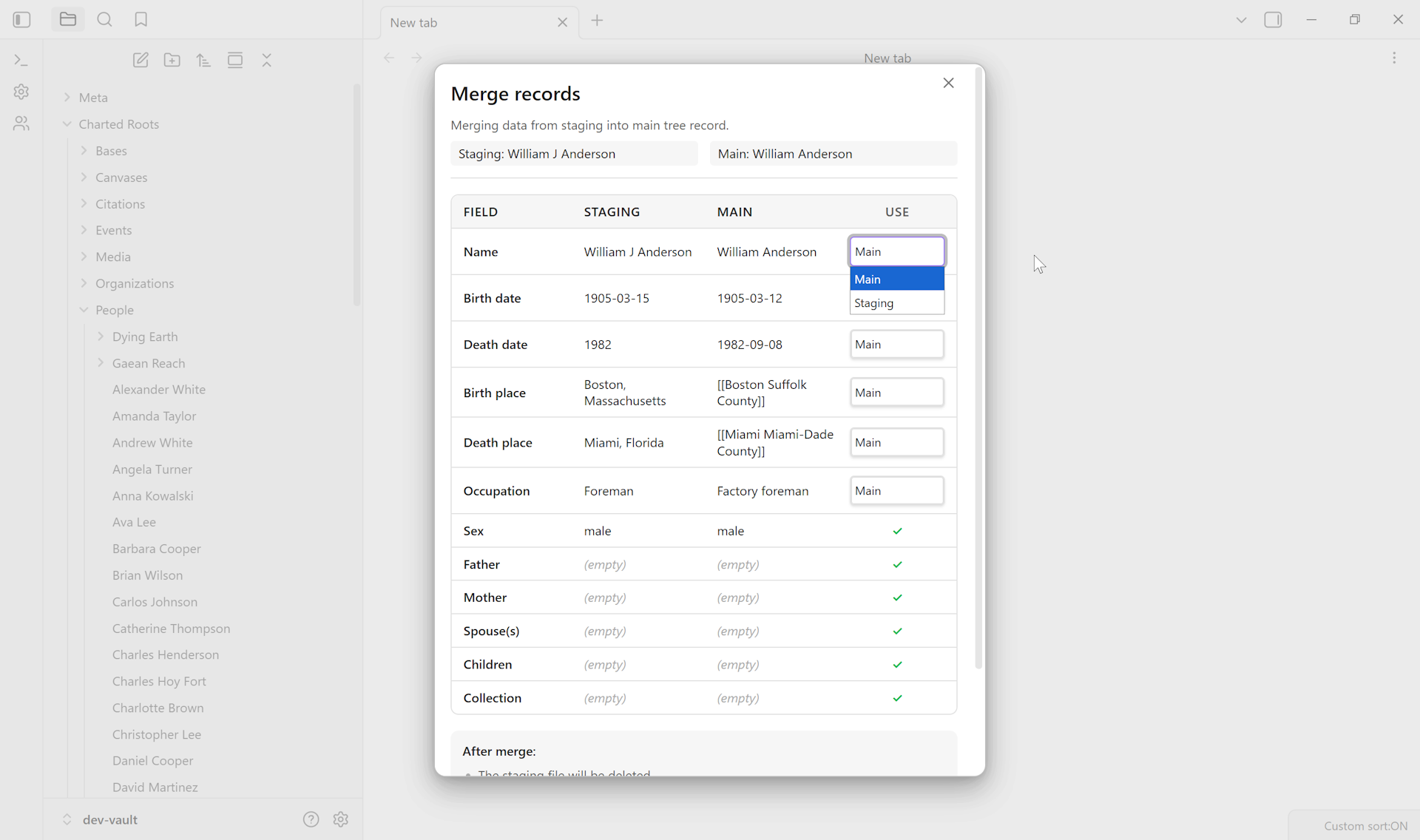
The Merge Wizard shows a side-by-side comparison of every field on the two records. The columns are labeled Staging and Main in the UI — vestiges of the wizard’s original staging-workflow heritage. For vault-wide duplicate detection, treat them as Record A and Record B; the kept record is the one labeled Main.
For each field row:
- Identical values show a green checkmark — no decision needed.
- Differing values show a dropdown letting you pick Main, Staging, or (for arrays like spouses or children) Both to combine them.
5. Preview, then merge#
Click Preview to see what the merged record will look like before committing. Click Merge to execute.
6. Confirm the reconciliation#
Charted Roots automatically updates relationship references. If the deleted record was listed as someone’s father, that reference updates to point at the kept record. Same for spouse and child relationships. No orphaned references should remain.
7. Regenerate trees#
Any canvas trees that included either person should be regenerated to reflect the new structure.
Variations#
- Cross-import detection. If your duplicates came from a recent GEDCOM/Gramps/CSV import to a Staging folder, use the Staging Manager’s per-batch Check duplicates instead of vault-wide detection. Same confidence scoring; different entry point.
- Tighter detection. Raise the name-similarity threshold (e.g., 0.9) to catch only near-exact matches. Lower the date tolerance (e.g., 0) to require exact birth/death dates.
- Looser detection. Lower the threshold (0.7 or below) to catch more variants — useful when migrating from a source with inconsistent name formatting.
- Bulk dismissals. “Different people” dismissals persist across sessions, so you only dismiss each false-positive pair once. Useful for siblings or cousins with identical names.
- Merge from cross-import review. Open Import/Export tab → “Review matches with main tree” → click Same person on a match → click Merge. Same Merge Wizard, different entry point.
Related guides#
- I want to import a GEDCOM file and clean up the result — this guide is the natural follow-through
- I want to set up a staging workflow for messy imports (coming soon)
Reference#
- Wiki: Staging & Cleanup — Smart Duplicate Detection + Merging Duplicate Records sections
- Wiki: Data Quality
Found something wrong or unclear? Suggest an edit — opens a pre-filled issue with the guides label.