Use this when your tree has grown beyond what’s practical to browse note-by-note — typically 100+ person notes — and you want to ask analytical questions: “who’s missing a death date?”, “how many people were born in a specific county?”, “which decade has the most marriages?” Obsidian Bases gives you a spreadsheet-like surface across your vault’s frontmatter, and Charted Roots ships pre-configured Bases templates for People, Sources, Events, Places, Organizations, and Universes.
By the end you’ll have the Bases templates created in your vault, you’ll know how to use the built-in views, and you’ll be able to create custom views for your own questions.
What you’ll need#
- Obsidian 1.7.2 or later (Bases is built into Obsidian — no separate plugin install).
- A populated vault — at minimum 20-30 person notes; ideally 100+ to make the analytical surface meaningful.
Steps#
1. Create the Bases templates#
Charted Roots ships pre-configured Bases for each entity type. Create them in one pass:
- Command palette →
Charted Roots: Create all base templates. - Or via Control Center → each entity tab has a Create base template action.
The command creates .base files in your vault — one per entity type. Default location is configurable under Settings → Charted Roots → Folders → Bases folder.
2. Open the People base#
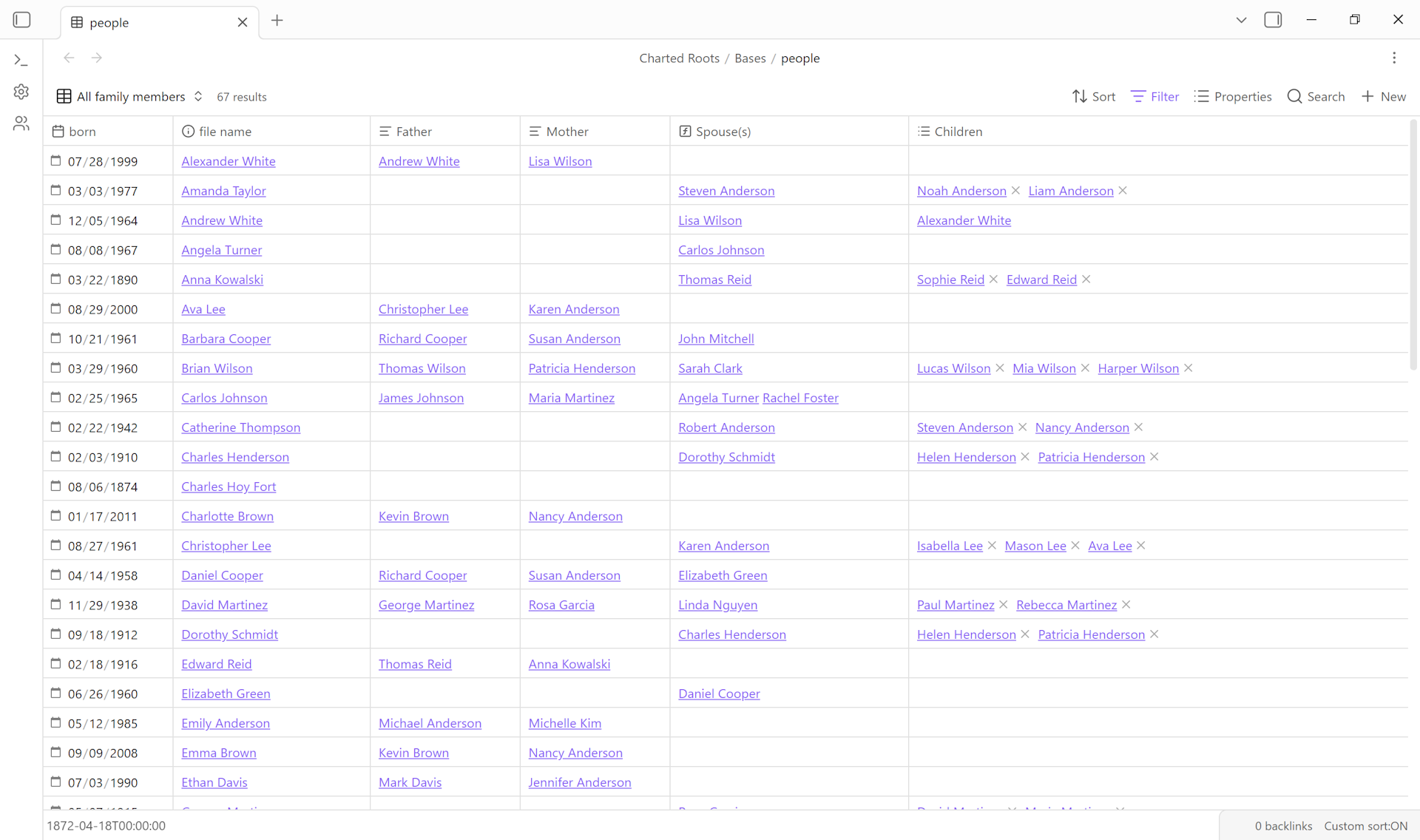
In the file explorer, find people.base and open it. The default view is a table showing every person note with name, birth, death, and other key fields as columns.
3. Use a built-in view#
The People base ships with several pre-configured views. Click the view selector (top-left) to switch:
- All People — flat list, every person.
- By Birth Year — sorted chronologically by birth.
- By Place — grouped by birth place.
- Missing Death Date — filtered to people without
diedordeath_dateset. - Missing Birth Date — same shape for birth.
- By Collection — grouped by
collectionproperty.
Pick the one that matches your question. The view filters/sorts/groups update live as you edit underlying person notes.
4. Create a custom view#
For your own questions, create a custom view. Click + New view in the view selector. Configure:
- Filter — predicates against frontmatter. E.g.,
birth_place contains "Boston"finds everyone born in Boston (any spelling variant). - Sort — by any property. E.g., sort by
bornascending for chronological order. - Group by — collapses rows under group headers. E.g., group by
fatherto see siblings together. - Properties (columns) — pick which frontmatter properties to display.
Save the view with a descriptive name. It persists in the .base file alongside the built-in views.
5. Cross-reference findings#
Bases is a read-and-filter surface. When a view surfaces something interesting (a geographic cluster, a generation with missing data, a research gap), open the underlying person notes to act on it. Bases doesn’t replace the Edit Person modal — it’s the discovery layer that points you at the right notes.
Variations#
- Other entity types. The Sources base, Events base, Places base, and Organizations base each have their own templates with relevant views (e.g., Sources has “By Type”, “By Repository”, “Missing Media”; Places has “By Coordinate Status”, “By Hierarchy Level”). Open each base file to explore.
- Cross-base queries. Bases doesn’t currently support joining across multiple base files. To answer a question like “which people in collection X have sources from repository Y?”, you’d combine views — open the Sources base filtered to repository Y, identify the people referenced, then check those in the People base.
- Bulk edits via Bases. Bases supports inline editing of frontmatter — change a value in the table, and the underlying note’s frontmatter updates. Useful for bulk corrections (e.g., normalizing place name variants).
- Export a view. Bases doesn’t have a native export, but copy-paste from the table works for moving data into a spreadsheet. Useful for sharing a snapshot with a non-Obsidian collaborator.
Related guides#
- I want to identify which facts in my tree need more research (coming soon)
- I want to find and merge duplicate persons — Bases can help spot duplicates by sorting on name + birth year
- I want to compile a worldbuilding bible from my notes — uses dynamic blocks (parallel to Bases) for in-note rendering
Reference#
- Wiki: Bases Integration
- Wiki: Community Use Cases — Using Bases for Data Views
- Obsidian: Bases documentation
Found something wrong or unclear? Suggest an edit — opens a pre-filled issue with the guides label.