Use this when something has happened in the family — a baby is born, a marriage takes place, a death occurs — and you want to update your tree with the new person, the related event, and any documentation (birth certificate, photo) in one efficient pass. The example below uses a new baby; the same shape works for any life event.
By the end you’ll have the new person linked to both parents bidirectionally, a birth event note linked to the person and the place, and any photos or certificates attached as media.
What you’ll need#
- The parents already in your tree as person notes.
- The birth date, time, and place (or whatever life-event details apply).
- (Optional) Media files — birth certificate scan, hospital photo, etc.
Steps#
The most efficient workflow uses the Create Person first path. Other entry points (Create Event first, or adding via the parent’s relationship menu) work but require more interactions.
1. Create the person note#
Open Control Center → Dashboard → Create New Person Note. Enter the basics:
- Name — e.g., “Boy Smith” or whatever placeholder you use until the family settles on a name.
- Sex — male / female / other.
- (Optional) Birth date — quick to add now while you’re in the form.
Don’t save yet — the next steps link the parents while the modal is still open.
2. Link both parents in the same form#
In the Edit Person modal’s relationship section:
- Father → click Link → select the existing father from the picker.
- Mother → click Link → select the existing mother.
Linking both parents now (rather than after creating the person) is what keeps this workflow efficient. Bidirectional linking is automatic — both parents’ children lists update without you having to edit them separately.
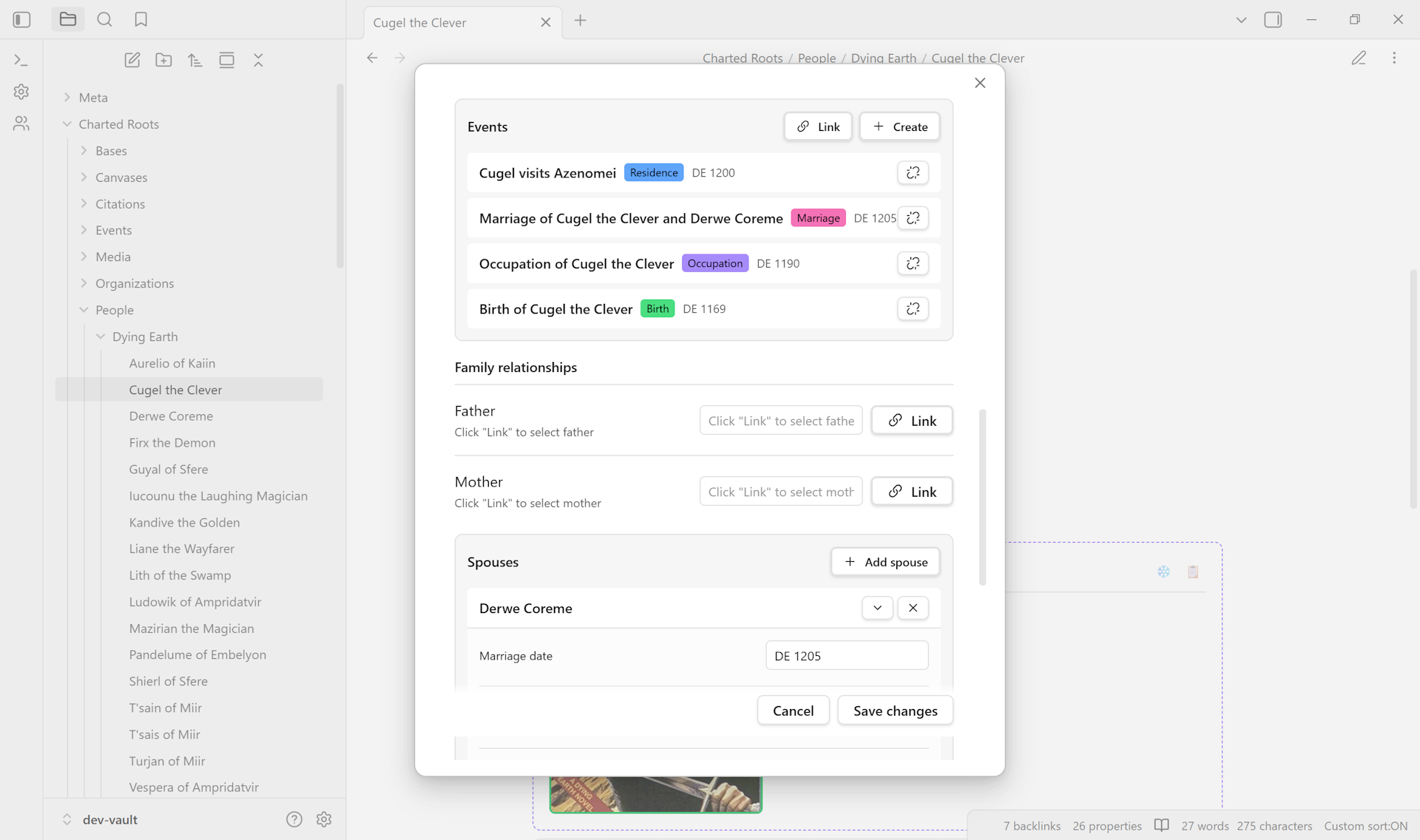
Click Create Person → Done.
3. Create the birth event#
Back at the Dashboard → Create New Event Note.
- Title — e.g., “Birth of Boy Smith”.
- Event type — Birth.
- Primary Person → click Link → select the new person.
- Place → click Link → select the existing birth location, or click Create New Place if it’s somewhere new (have lat/long ready or look up coordinates).
Click Create Event.
4. (Optional) Attach media#
Right-click the new person note → Charted Roots → Media → Link Media → upload the photo. Repeat for the event note (the birth certificate scan typically lives on the event note rather than the person note).
For multiple files, the media picker accepts batch uploads.
5. Verify#
Open the new person’s note. Frontmatter shows cr_type: person, cr_id, both parents as wikilinks, and any media. Both parents’ notes now show the new person in their children array. The event note shows the person, place, and event-type metadata.
Variations#
- For a marriage event. Create the spouse note first (or link the existing spouse), then create the marriage event in step 3 with event type
marriage, both parties aspersons, and the marriage location asplace. Charted Roots also writes spouse-marriage metadata (spouse1_marriage_date,spouse1_marriage_location) to both person notes. - For a death event. Same shape — create the death event in step 3 with event type
death, the deceased as primary person, and the place of death. The person’sdiedfield updates from the event date. - Create-event-first path. Open Create Event first, link the new person via the Create New Person button inside the event’s primary-person picker. Slightly less efficient (~39 interactions vs. ~34) because you have to navigate to the person note afterward to link parents.
- Add-via-parent path. Right-click the parent’s note → Charted Roots → Add Relationship → Add Child → Create New Child. Most intuitive but least efficient (~45 interactions) because adding the child via one parent doesn’t auto-link to the other parent — you have to repeat for the second parent.
- Family Creation Wizard for whole groups. If you’re entering several siblings or a whole nuclear family at once, use the wizard instead of repeating this workflow per child.
Related guides#
- I want to add my first person from scratch — the foundational workflow this guide builds on
- I want to set up per-fact source citations — to record the source for the birth event
- I want to find and merge duplicate persons — if you accidentally create a duplicate
Reference#
- Wiki: Data Entry
- Wiki: Community Use Cases — Adding a New Family Member — original interaction-count comparison
Found something wrong or unclear? Suggest an edit — opens a pre-filled issue with the guides label.